Reference the actions, camera moves, or performance in a video and generate a new clip where your subject follows the same motion.
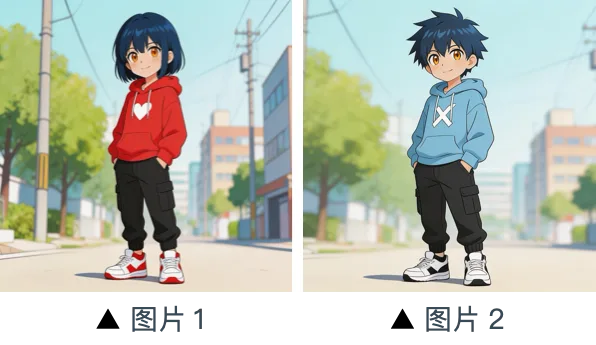
PromptReference the character movements and camera language of @Video1 to create a fight scene between @Image2 and @Image1: @Image2 is the character on the left, @Image1 is the character on the right, with intense background music.
Mimic motion on Pixlu extracts motion (and optionally camera movement) from a reference video, then applies it to your subject in a newly generated clip. Ideal for action transfer, dance recreation, and performance-driven character animation.
Step 01
Upload a clear subject photo or character still—the identity you want to keep.
Step 02
Pick a clip with readable body movement. Dance, gestures, and continuous actions transfer best.
Step 03
Use patterns like “Reference the action in @Video1 to generate…” and define your subject from @Image1.
Map dances, walks, and performances from a driving video onto your character.
Keep one character identity while exploring new motion and scenes.
Borrow camera energy, rhythm, or mood from reference footage.
Turn still portraits into motion-led clips for Reels and music content.
Mimic motion works best when you state which asset provides the action and which provides the identity.
State that @Image1 provides appearance and @Video1 provides action or camera movement—don’t mix responsibilities.
“Reference the action in @Video1 to generate…” beats a vague “make it dance.”
Slow, coherent movements transfer more cleanly than stacked high-energy jumps in one pass.
Start by naming who’s in @Image1, then stick to the same wording for the rest of the prompt (e.g. always “the character in @Image1”). Don’t switch between “she,” “the lead,” and other labels.
Recreate moves on portraits or virtual characters.
Drive expressive motion from real reference performances.
Produce motion variants quickly from still product or talent photos.
Get Started
Generate cinematic images and videos from a single prompt. No design experience required.