Upload images, select the area to edit on desktop, and describe the result in plain language. Outfits, backgrounds, and local retouches stay focused where you box.
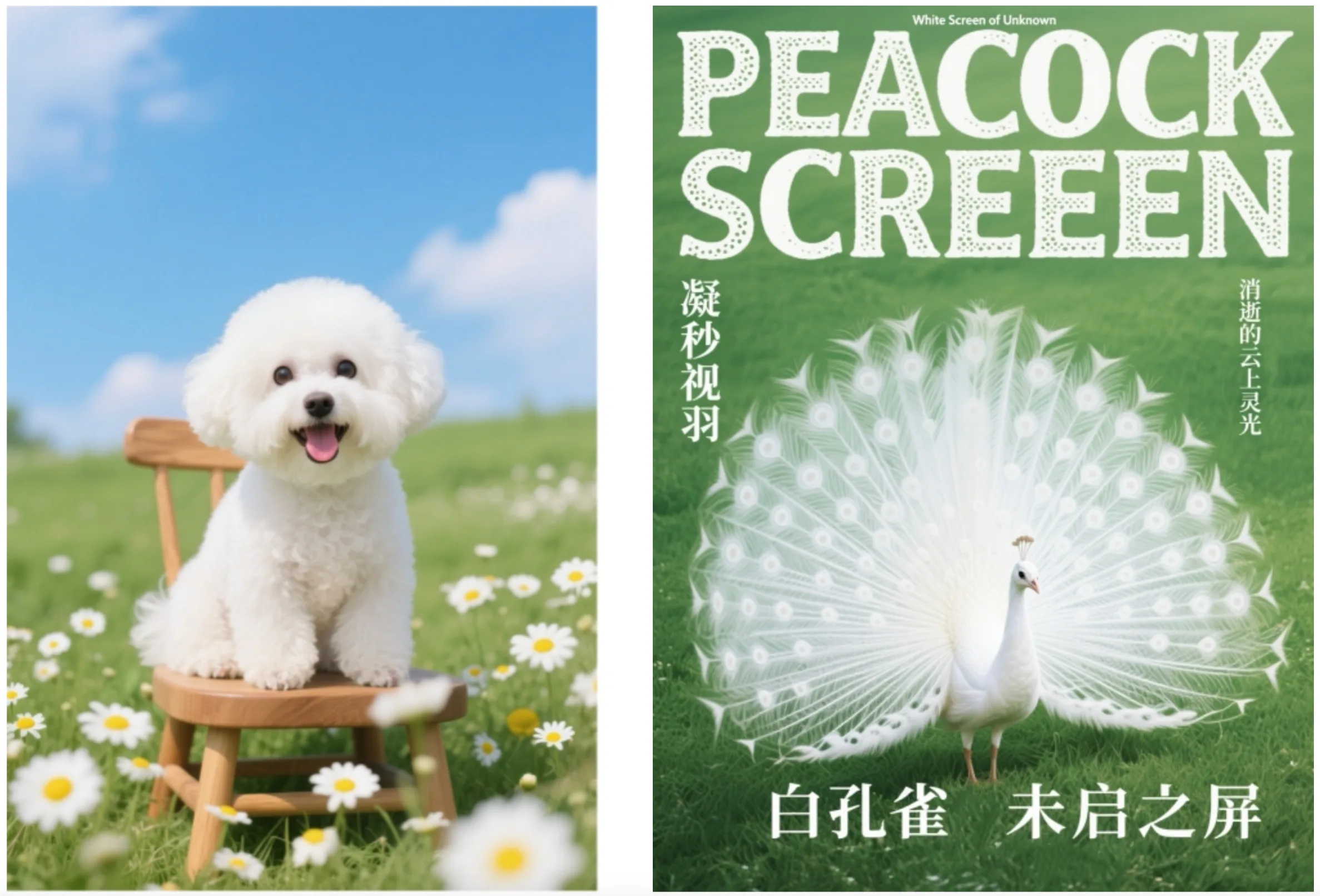
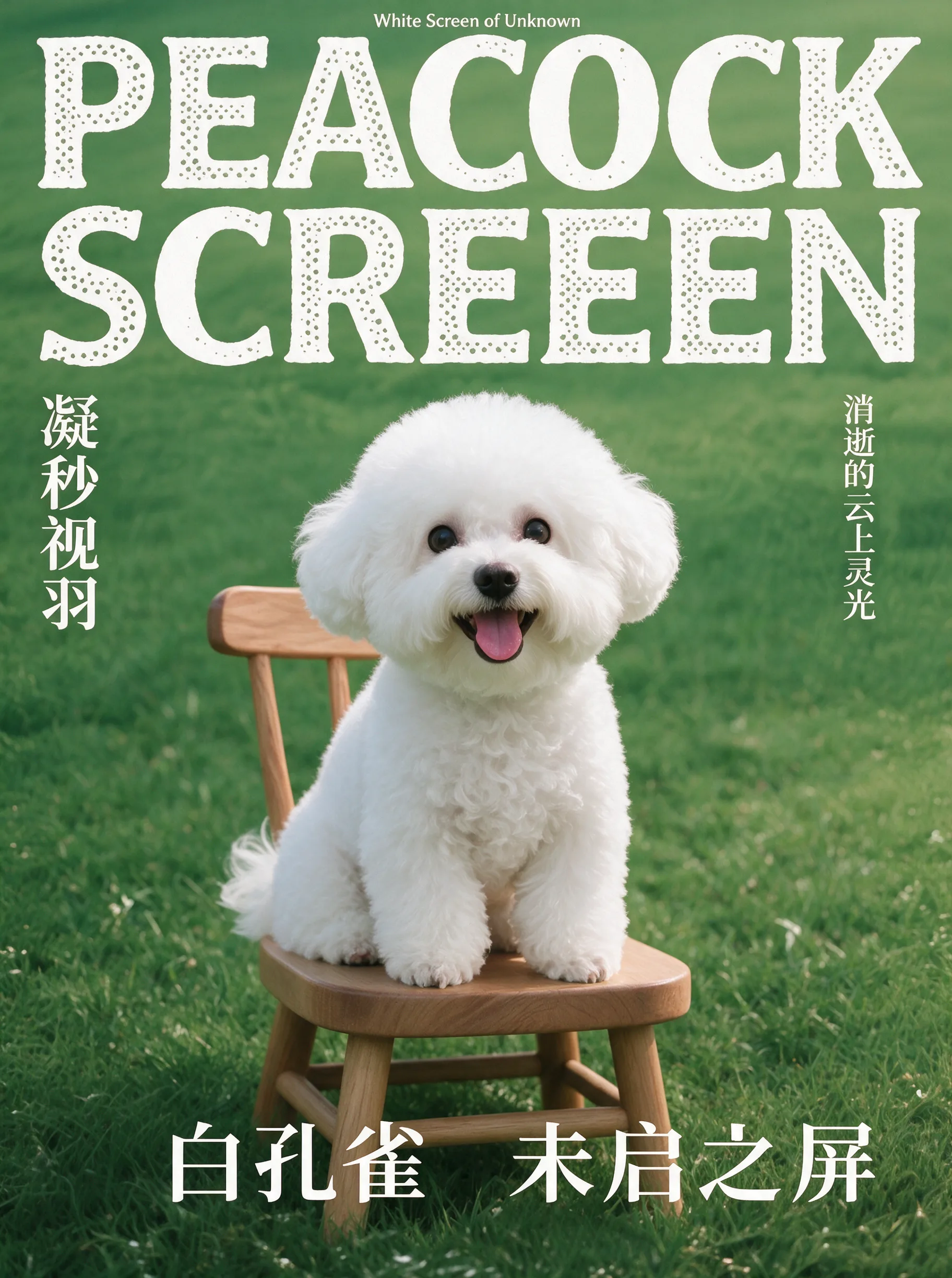
PromptPlace the subject from Image 1 · Region 1 into Image 2 · Region 1
Pixlu combines image-to-image editing with interactive region selection. Add reference images, box the pixels you want to change, and prompt only that area—wardrobe swaps, cleanup, lighting, or style—while leaving the rest of the frame more stable.
Step 01
Add your main image plus optional references (outfit, style, product). Clear subjects and sharp files give the most reliable results.
Step 02
On desktop, click Select region on a thumbnail, draw a rectangle, then describe what the boxed area should become and what must stay unchanged.
Step 03
Review the output, adjust the prompt or redraw the box, and generate again until it matches what you want.
Change clothing, accessories, or a specific object without repainting the entire portrait.
Pull look or material from another image and apply it inside the boxed region.
Retarget environment, color, and mood around the subject with region-aware prompts.
Swap or refine parts of a packshot for ads, listings, and concept boards.
Box first, then prompt: say what the selection should become and what the rest of the image should keep.
A drawn region plus a short instruction beats a long prompt with no spatial anchor.
When using multiple uploads, say which image supplies the style or material for the boxed area.
Photorealistic, commercial lighting, sharp detail, clean edges—helps blends look natural.
Iterate on concepts quickly from a single base photo.
Create campaign and listing variants without reshoots.
Keep a face consistent while exploring outfits and scenes.
Get Started
Generate cinematic images and videos from a single prompt. No design experience required.